What Are Git Worktrees, and Why Should You Use Them?

The Feature That Sat Unused for a Decade
Worktrees are the latest hotness in git. Which is funny, because they've been around since 2015.
They're useful, though, and you might be wondering why you'd use them, how they differ from branches, and why they're suddenly popular again. Let's get into it.
Context Switching the Old Way: Branches and Stashing
Say you live in a worktree-less world. You're working on a ticket, and an urgent bug lands on your desk. You have to switch contexts.
First, stash your work:
git stash push -m "wip feature login"
Switch to main and update:
git checkout main
git pull origin main
Make a bugfix branch:
git checkout -b hotfix-bug
Fix everything, commit, push:
git add .
git commit -m "fix broken submit button"
git push origin hotfix-bug
After the PR merges, come back, pull main, remove the bug branch:
git checkout main
git pull origin main
git branch -d hotfix-bug
Then go back to the feature you were working on:
git checkout feature-login
git stash pop
Phew. Where were we?
The mental overhead of switching around, reloading files, reinstalling node_modules based on whatever changed—it adds up. The context-switching burden is heavy.
This is a basic example. In practice, developers work around this chaos with more complicated stash juggling, or even multiple clones of the same repo. (Guilty.)
Until worktrees.
Context Switching the Worktree Way
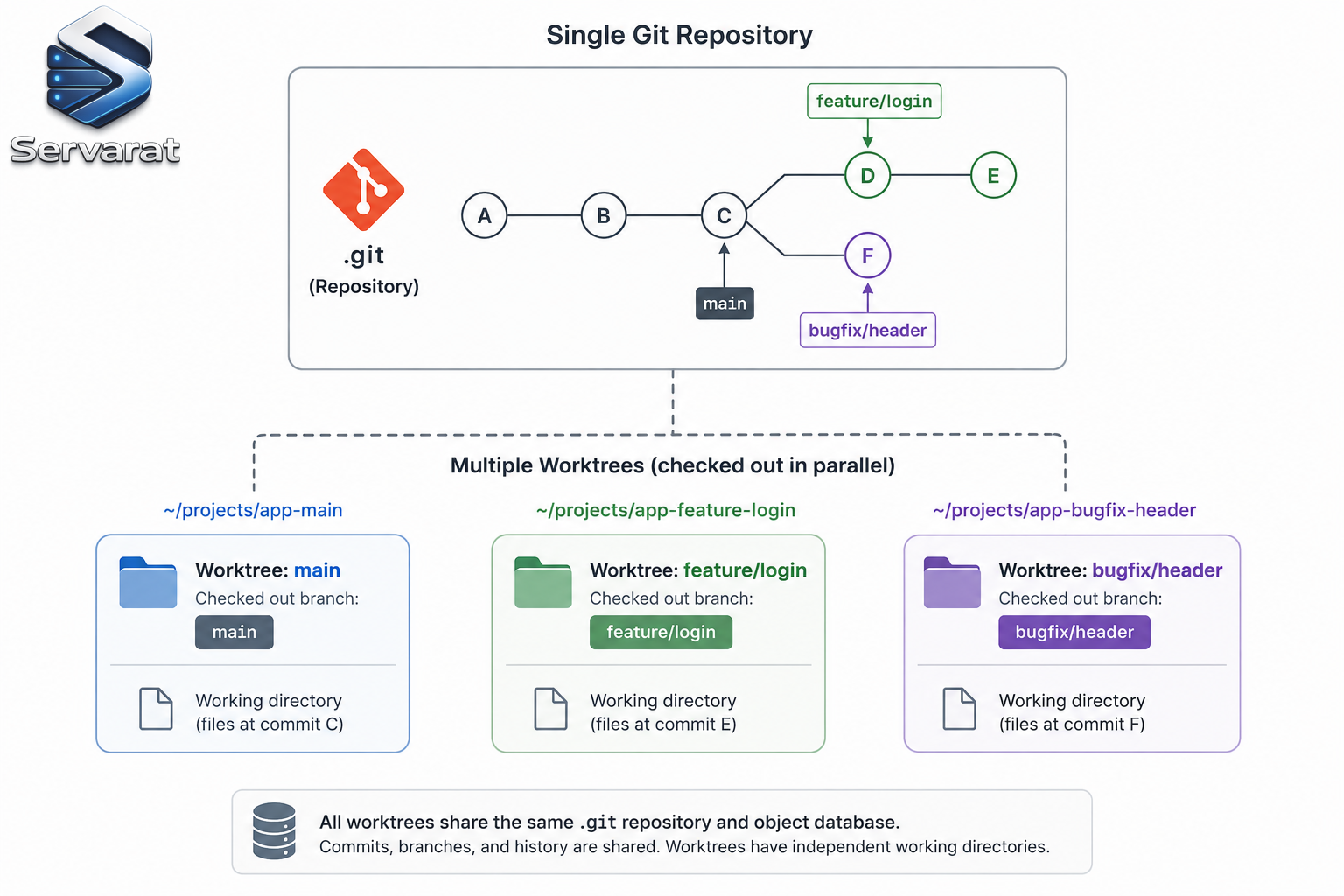
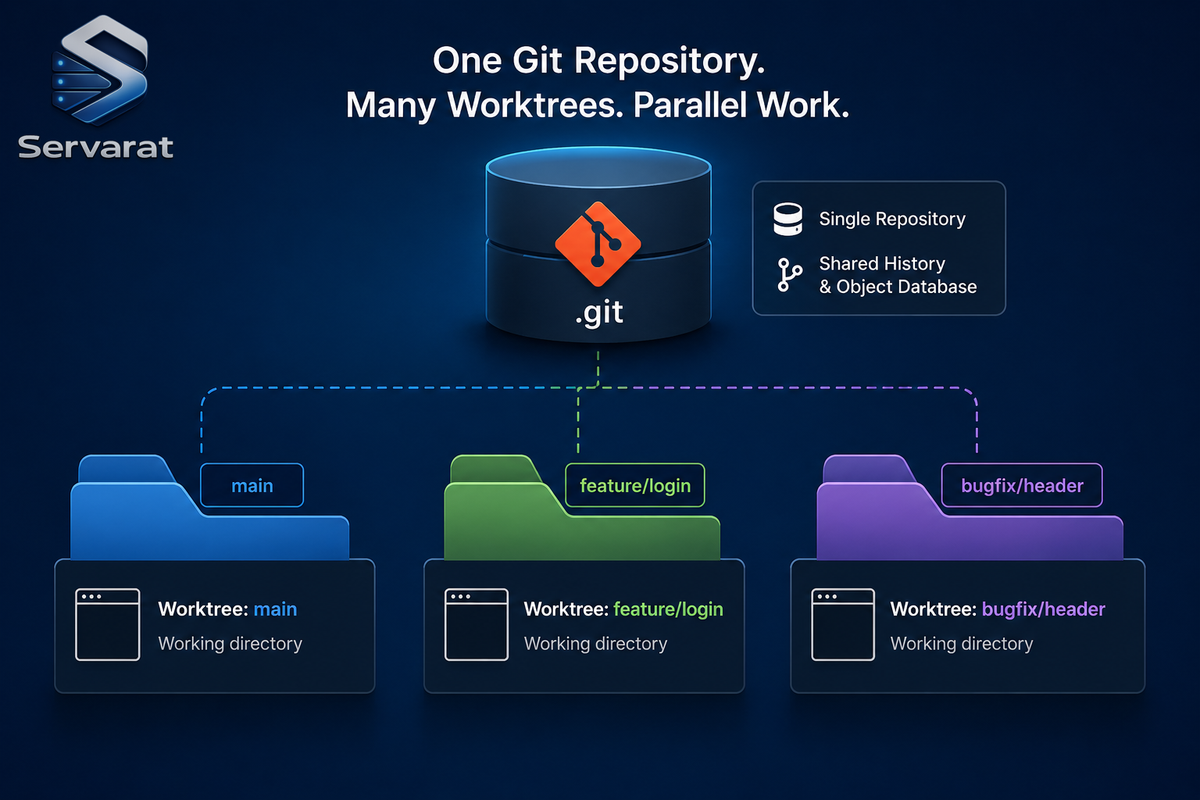
With worktrees, you never leave your branch, you never stash, and your editor context for the original feature stays untouched.
git worktree add ../hotfix-workspace -b hotfix-bug main
This instantly creates a sibling folder called hotfix-workspace, bases it on main, and checks out a new branch called hotfix-bug.
Now open that folder in a new editor window (or cd into it) and fix the bug. Your original editor window stays exactly as you left it.
cd ../hotfix-workspace
# ...fix fix fix...
git add .
git commit -m "fix broken submit button"
git push origin hotfix-bug
Merge the PR online just like before. Once it's merged, delete the temporary folder:
cd ../main-project
git worktree remove ../hotfix-workspace
Much smoother. Zero risk of stash conflicts, no editor disruption, and you can truly work in parallel.
So Why Now?
For a long time, worktrees were relatively unknown. Most developers had never heard of them—either git GUIs didn't support them (or treated them as second-class citizens), or people just followed the known pattern: feature branch, work, PR, merge, repeat.
Our work has changed. AI tooling has pushed developers toward working in parallel more than at any point in the history of software development. People run multiple agent sessions at once, and "code review culture" is growing faster than "code writing culture."
Agents and humans both do more in parallel with worktrees, which is why modern AI coding tools increasingly default to creating a fresh worktree per session rather than stepping on each other in a single working directory. That shift is most of why a 2015 feature suddenly feels new.
What's the Catch?
Worktrees solve a lot, but there are things to watch out for.
Dependency bloat: Each worktree folder needs its own copy of project dependencies. Running npm install or pip install across several of them fills your disk fast. ⚠️ On a machine with a fleet of worktrees, this is the one that bites—a few node_modules directories at a few hundred MB each adds up quickly.
Folder management: You have to delete worktree folders or they clutter the parent directory over time. Some tools handle cleanup for you, but in the terminal it's on you.
Global .gitignore requirements: If you create worktree folders inside your main repo directory, you have to add them to .gitignore manually so you don't accidentally track them. You can create worktrees outside the main repo to sidestep this (and many tools do that by default), but it's worth knowing.
One branch, one worktree: Git stops you from checking out the same branch in two different worktrees at once. This is deliberate—it prevents data corruption.
A Few Practical Notes for Terminal Users
A couple of commands worth keeping in your back pocket beyond the basics:
List every worktree attached to the repo:
git worktree list
Clean up stale administrative references after you've manually deleted a folder (instead of using git worktree remove):
git worktree prune
⚠️ If you rm -rf a worktree folder directly instead of using git worktree remove, git keeps a dangling reference to it. git worktree prune clears those. Get in the habit of removing through git, and keep prune as the cleanup for when you forget.
For the dependency-bloat problem, if your package manager supports a global or shared store (pnpm's content-addressable store, for example), worktrees get a lot cheaper—the bulk of the dependencies live once on disk and get linked into each worktree rather than copied.
Should You Use Them?
The most senior-developer answer possible: it depends.
You might prefer working one way or another. You might not do much parallel work and like the mental model of branches and stashing. You might go all-in on worktrees. You might want both, depending on the task.
Try them on a real context-switch and see whether the reduced friction is worth the extra folders to manage. For anyone running multiple parallel sessions—agent-driven or not—they tend to pay for themselves quickly.