Unauthorized SSH Keys: How to Find Them Before Attackers Do

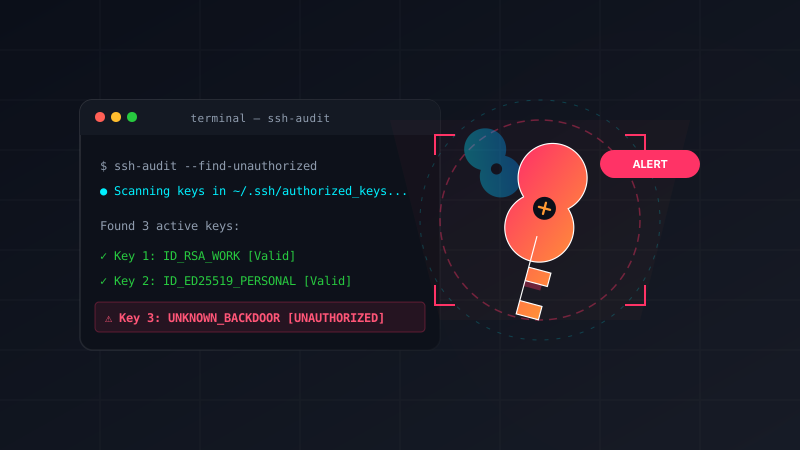
The Problem: A Single Key, Zero Alerts
An attacker gains access to your system. They add a public key to an existing account. No alerts fire. No failed authentication attempts appear in logs. No brute-force signatures. The SSH daemon sees a trusted credential and grants access.
That key now provides persistent, low-noise access. The attacker can return whenever they want. Their login looks identical to a legitimate administrator's login. That's why unauthorized SSH keys are more dangerous than weak passwords—they don't look dangerous.
This guide explains how to find keys that shouldn't be there, monitor for suspicious activity, and understand whether the trust you've granted still belongs.
Why SSH Keys Bypass Traditional Security
SSH key attacks look fundamentally different from password attacks:
Password attack:
- Multiple failed attempts appear in logs
- Lockout thresholds trigger
- Users notice failed logins
- Security tools detect brute-force patterns
SSH key attack:
- Authentication succeeds on the first try
- Legitimate credentials are used
- No failed authentication attempts
- No alerts generate
- Nothing looks suspicious
That asymmetry is the core problem. SSH keys were designed as a secure alternative to passwords. They succeed at that goal. But once an attacker has a legitimate private key, the authentication process looks exactly like authorized access.
Where Unauthorized Keys Come From
Understanding the attack vectors helps you know where to look:
Compromised developer workstations: Private keys for production access live on laptops. A compromised laptop means compromised production access.
Public repositories: Developers accidentally commit private keys to GitHub, GitLab, or public code repositories. Automated scanning tools continuously search for exposed secrets.
Service accounts: Broad permissions granted to automation accounts because restricting access is hard. Those accounts often hold keys providing access across multiple environments.
Vendor access: Contractors receive temporary keys. Projects end. Nobody removes the keys. Months or years later, the account still works.
Manually added keys: An administrator troubleshooting an outage temporarily adds a key for convenience and forgets to remove it later.
Compromised intermediate hosts: An attacker gains access to a deployment server, CI/CD system, or backup repository containing private keys. Those keys unlock the entire fleet.
Step 1: Inventory All Authorized SSH Keys
Start by understanding what trusted access actually exists. You need to know:
- Every authorized_keys file across your environment
- Who owns each key
- When it was added
- Why it exists
SSH keys appear in many places:
- Root accounts (
/root/.ssh/authorized_keys) - Service accounts (automation, deployment, CI/CD)
- Application users
- Dormant user accounts
- System accounts
Command to find them:
# Find all authorized_keys files (may require root)
find / -name "authorized_keys" 2>/dev/null

# Or across multiple hosts (using Ansible)
ansible all -m find -a "paths=/home,/root name=authorized_keys recurse=yes" --become
For each key found, document:
- Username and home directory
- Public key fingerprint (
ssh-keygen -l -f /path/to/key) - Key owner (who created it?)
- Business purpose (why does it exist?)
- Date added (if available via
stat)
This tedium is necessary. Detection depends on knowing what normal looks like. If you can't answer "who owns this key?", it should raise a flag.
Step 2: Map Keys to Known Owners
Every key should map to a specific person or service with a documented business purpose. Red flags:
Keys with unknown owners: Immediate investigation.
Keys from former employees: Should be removed.
Keys from retired systems: Should be removed.
Keys from completed projects: Should be removed.
Shared keys across accounts: A single key used by multiple people is convenient but dangerous. Compromise that key and you've compromised every account it accesses.
Duplicate keys across unrelated systems: If the same public key appears on both a web server and a database server, investigate why. Often it's convenience-based administration. Sometimes it's persistence.
Create a spreadsheet:
| Username | System | Key Fingerprint | Owner | Purpose | Date Added | Status |
|---|---|---|---|---|---|---|
| admin | web01 | abc123... | Alice | Production access | 2024-01-15 | Active |
| deploy | app02 | def456... | CI/CD System | Deployments | 2024-06-01 | Active |
| unknown | db01 | ghi789... | ??? | ??? | ??? | INVESTIGATE |
Step 3: Monitor authorized_keys for Changes
Periodic audits are helpful, but an attacker only needs seconds to add a key. Continuous monitoring catches suspicious additions in real time.
File Integrity Monitoring
Track changes to authorized_keys files:
# Using AIDE (Advanced Intrusion Detection Environment)
aide --init
aide --check

# Or using Tripwire
tripwire --init
tripwire --check
Linux Audit Rules
Track which process or user modified authorized_keys:
# Add audit rule (as root)
auditctl -w /home -p wa -k ssh_key_changes
auditctl -w /root/.ssh -p wa -k ssh_key_changes

# Make persistent (add to /etc/audit/rules.d/)
echo '-w /home -p wa -k ssh_key_changes' >> /etc/audit/rules.d/custom.rules
systemctl restart auditd

# Review audit logs
ausearch -k ssh_key_changes | grep added
Monitor for Specific Patterns
# Watch for new keys added to privileged accounts
for file in /root/.ssh/authorized_keys /home/*/ssh/authorized_keys; do
  [ -f "$file" ] && stat "$file" | grep Modify
done

# Compare against baseline
diff <(sort ~/.ssh/authorized_keys.baseline) <(sort ~/.ssh/authorized_keys)
Step 4: Review SSH Authentication Logs
Focus on successful public-key authentication, not just failures. Patterns that warrant investigation:
Logins from unfamiliar IP addresses:
grep "Accepted publickey" /var/log/auth.log | grep -v "192.168"
Authentication outside maintenance windows:
# Logins between 2 AM and 6 AM (unusual for most environments)
grep "Accepted publickey" /var/log/auth.log | grep -E "0[2-5]:[0-9]{2}"
Service accounts with interactive logins:
# Service accounts shouldn't log in interactively
grep "Accepted publickey" /var/log/auth.log | grep -E "deploy|ci|automation|svc"
Dormant users suddenly active:
# User inactive for 6 months suddenly logging in
lastlog | grep "Never logged in" -B5  # Find dormant accounts
grep "Accepted publickey" /var/log/auth.log | grep those_usernames
One login could be legitimate. Twenty logins from a previously unseen source network tell a different story.
Step 5: Correlate SSH Activity with User Behavior
A valid key used in an invalid way is still suspicious. Ask:
- Did this login originate from the user's approved network?
- Is this user normally active at this time of day?
- Does this login align with the user's role?
- Does this match approved change tickets?
Unauthorized SSH key usage often appears as a context mismatch, not an authentication failure. The login works. Everything around it doesn't.
Use SIEM or log analysis to correlate:
# Extract useful fields for analysis
grep "Accepted publickey" /var/log/auth.log | awk '{print $1, $2, $3, $9, $11}' > ssh_activity.csv
# Columns: Date, Time, Host, User, IP
Step 6: Look for Persistence Patterns
Attackers follow recognizable patterns:
New key after suspicious activity:
- Suspicious access appears in logs
- A new SSH key is added within hours
- Investigate the correlation
Keys on high-value targets:
- Keys added to root accounts
- Keys on infrastructure management systems
- Keys on systems with broad sudo privileges
- All deserve elevated scrutiny
Same key across multiple hosts:
- Attacker distributes a master key
- Single point of compromise affects many systems
Login followed by suspicious commands:
- Login succeeds
- Immediately followed by
sudoescalation - File staging or data exfiltration commands
- Outbound connections to unknown hosts
- This is not an administrator—this is an adversary
Step 7: Close Audit Gaps
Many SSH incidents happen because of process failures, not technical ones:
Centralized inventory missing: No one knows which keys exist.
No alerting: A key can be added to production without notification.
Vendor access never removed: Contractors get temporary keys; cleanup is delayed indefinitely.
SSH configuration changes unmonitored: Weakened access controls go unnoticed.
Security Monitoring Alerts
Set up alerts for:
- New keys added to privileged accounts
- Public-key logins from previously unseen source IPs
- Dormant users suddenly authenticating
- Same key appearing across unrelated accounts
- SSH activity outside approved maintenance windows
- SSH configuration changes that weaken access controls
Responding to Suspected Unauthorized Keys
Don't rush to remove the key. Preserve evidence first:
# Collect authentication logs
cp /var/log/auth.log /tmp/auth.log.backup

# Collect audit logs
ausearch -k ssh_key_changes > /tmp/ssh_audit.log

# Collect shell history
cat ~/.bash_history > /tmp/bash_history.backup

# Check for persistence mechanisms
crontab -l
systemctl list-timers
ps aux | grep -E "nc|ncat|socat|/dev/tcp"
Then:
- Identify all affected accounts
- Determine which systems trust the key
- Disable or remove suspicious keys after evidence collection
- Rotate exposed keys
- Check cron jobs, startup scripts, scheduled tasks
- Look for lateral movement (attackers rarely stop at one host)
Prevention: Make SSH Trust Verifiable
The strongest defense is reducing uncertainty:
- Every key should have a documented owner
- Every key should have a defined purpose
- Every key should have a known lifecycle (creation, rotation, removal)
- Centralized SSH key management (Teleport, HashiCorp Vault, etc.)
- Regular reviews to remove stale access
- Continuous monitoring for suspicious changes
Treat SSH keys as privileged credentials, because that's exactly what they are.