Linux Disk Full: Why df and du Disagree, and How to Fix It

The 2 AM Debugging Mystery: df Says 80% Full, du Says 50%
You're debugging a full disk alert. The df command shows red. The du / output looks totally fine. You run both commands three times, thinking you misread something. The numbers don't match.
One of them is lying. Or maybe they're both right, just measuring different things.
This happens on production Linux systems more often than you'd expect, and the fix is usually just 2 commands away once you understand what's actually happening.
What df and du Are Actually Measuring
They're measuring the same disk, but in fundamentally different ways.
df: Filesystem Block Allocation
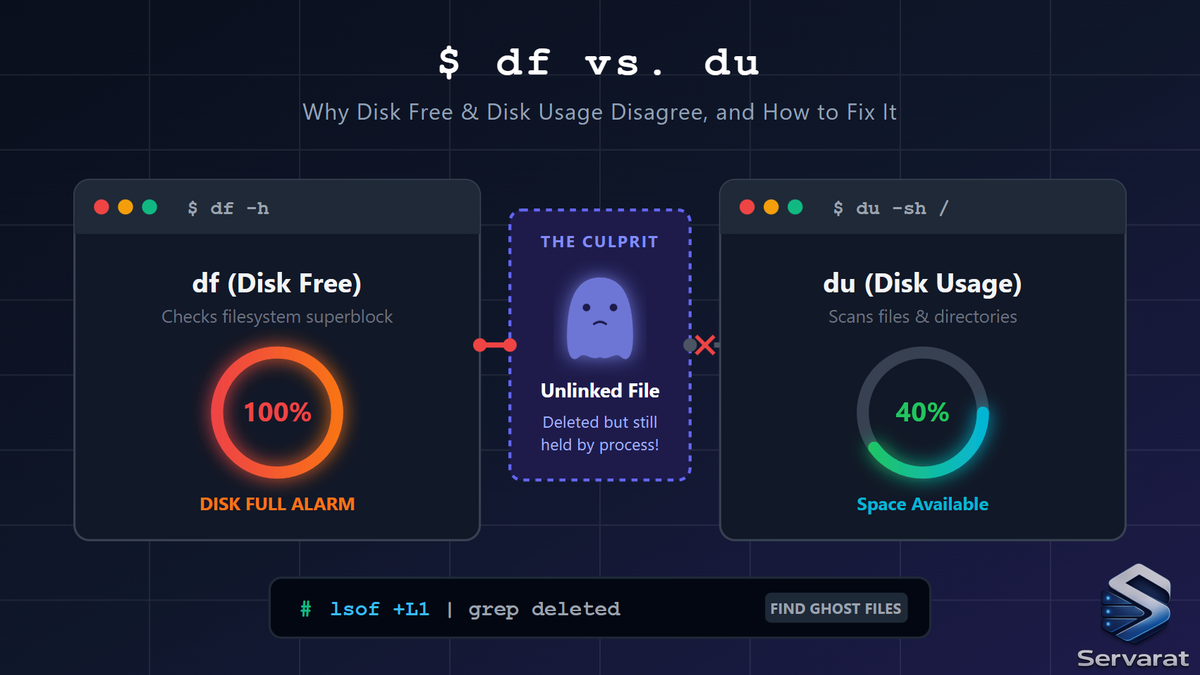
df reads disk usage directly from filesystem metadata. It asks the kernel:
"How many filesystem blocks are currently marked as used?"
It doesn't scan directories or inspect files. It reads the superblock and calculates used blocks.
df -h
# Filesystem      Size  Used Avail Use%  Mounted on
# /dev/sda1        50G   40G   10G  80%  /
The kernel says: 40GB of blocks are allocated. That's the truth from the filesystem's perspective.
du: Directory Tree Traversal
du works differently. It walks the entire directory tree starting from a path, checks every reachable file and directory, and adds up their sizes.
du -sh /
# 23G  /
It only counts files that still exist in the directory structure.
Why They Disagree
When you run both commands on the same system and get wildly different numbers, the gap is usually filled by space the filesystem thinks is allocated but the directory tree can't see.
The most common culprit: deleted files still held open by running processes.
The Root Cause: Deleted Files Held Open
When a process opens a file and you delete it with rm, Linux doesn't immediately free the disk space. Here's what happens:
rmremoves the directory entry (the filename is gone)- The file disappears from the filesystem's view
dustops counting it immediately (file is "gone" from directory tree)- But the data is still there
- If the process still has the file open, the kernel keeps the blocks allocated
dfstill counts those blocks as used
Result: Split reality:
du: File doesn't exist, so it's not counteddf: Blocks are still allocated, so they're counted
Real-World Scenario: Log Files
The most common case on production systems is log files:
# Application is writing to a log file
tail -f /var/log/app.log

# Meanwhile, someone tries to free space
rm /var/log/app.log

# Space gone from directory tree
du -sh /var/log
# 2G  /var/log

# Space NOT gone from filesystem
df -h /var/log
# /dev/sda1  50G  40G  10G  80%  /var/log

# The process is still writing to the file
# but the file has no name anymore
The application keeps writing to a file descriptor that points to a file with no directory entry. The file is "deleted" but not freed because the process still has it open.
Finding Deleted Files Still Open: lsof +L1
The tool you need is lsof, which lists open file descriptors system-wide.
To catch deleted-but-still-open files:
sudo lsof +L1
The +L1 filter catches files with a link count below 1, which means the file has been deleted but is still held open by a running process.
⚠️ Use sudo: Without it, lsof only shows files opened by your current user. You'll miss system services, daemons, and production workloads that are often the real cause.
Sample Output
COMMAND     PID   USER   FD   TYPE DEVICE  SIZE/OFF NLINK NODE NAME
nginx      1423   root   10w   REG  253,1  524288000     0 1048 /var/log/nginx/access.log (deleted)
java       2201 tomcat   22w   REG  253,1  209715200     0 2341 /tmp/app.log (deleted)
postgres   5678 postgres  5w   REG  253,1  1073741824     0 5555 /var/lib/postgresql/wal/wal.log (deleted)
Read this output:
- COMMAND: Process holding the file open (nginx, java, postgres)
- PID: Process ID
- SIZE/OFF: Exact bytes still occupying space (524MB for nginx, 200MB for java, 1GB for postgres)
- NAME: Original filename, marked
(deleted)
The (deleted) tag confirms the file has no directory entry. The SIZE/OFF column tells you exactly how much space is still being wasted.
In this example:
- nginx is sitting on 500MB that du can't see but df counts
- java is holding 200MB
- postgres is holding 1GB
Fix Option 1: Restart the Process (Clean)
The safest and most reliable fix:
sudo systemctl restart nginx
When the service restarts:
- It closes all open file descriptors
- The kernel releases the disk blocks
dfimmediately reflects the freed space
Use this when:
- The service can tolerate a restart
- You want a clean, predictable recovery
- You don't want to risk touching
/proc
Verify the fix:
df -h /var/log
# Space should increase immediately
Fix Option 2: Truncate via /proc (No Downtime)
This is the "production is on fire and we can't restart" rescue method.
From your lsof output, grab the PID and FD (file descriptor number), then truncate directly:
# From lsof output: nginx PID=1423, FD=10
sudo truncate -s 0 /proc/1423/fd/10
What this does:
truncate -s 0: Set file size to zero/proc/1423/fd/10: Points to the open file inside the running process- Result: The file shrinks to 0 bytes, freeing space immediately
Verify:
df -h /var/log
# Space freed immediately while process keeps running
⚠️ WARNING: Never truncate through /proc on:
- Database write-ahead logs
- Crash recovery files
- Any file a process uses for data integrity
You'll corrupt data. This trick is safe only on application log files where losing contents is acceptable.
Real Commands: Sort by Size to Find the Biggest Culprit
# Find deleted files sorted by size (largest first)
sudo lsof +L1 | sort -k7 -rn | head -20
This shows the 20 largest deleted files still open. Nine times out of ten it's a log file a daemon is writing to after someone deleted it.
Comparison: df, du, and lsof
| Situation | Command | Purpose |
|---|---|---|
| Is filesystem actually full? | df -h |
Check block allocation at kernel level |
| What's using space in /home? | du -sh /home/* |
Sum directory sizes |
| Find deleted files still open | sudo lsof +L1 |
Identify processes holding deleted files |
| Find biggest files | du -sh * | sort -rh |
Sort directories by size |
| Check filesystem settings | tune2fs -l /dev/sdX |
View reserved blocks, block size, etc. |
Common Causes Beyond Deleted Files
Reserved filesystem blocks:
ext4 reserves ~5% of filesystem for root. Check with:
tune2fs -l /dev/sdX | grep -i reserved
Hidden mount points:
Another filesystem mounted over a non-empty directory hides the underlying files. Check overlapping mounts:
mount | sort
Container/overlay quirks:
Docker and container filesystems use overlay mounts. A "deleted" layer file might still count. Use container-specific tools:
docker system df
Sparse files:
Files with holes might show different sizes in du vs actual blocks:
du -sh file.img       # Apparent size
du -sh --apparent-size file.img  # Actual space used
Debugging Workflow
- See the discrepancy:
   df -h /
   du -sh /
- Find the culprit:
sudo lsof +L1 | sort -k7 -rn
- Pick your fix:
- Restart:
sudo systemctl restart <service> - Truncate:
sudo truncate -s 0 /proc/<PID>/fd/<FD>
- Restart:
- Verify:
df -h /
Why This Matters on Production Systems
Log rotations fail silently when processes don't close file descriptors. Disk space disappears mysteriously. Automated alerts fire at 2 AM. Understanding this mechanism:
- Saves debugging time
- Prevents unnecessary system restarts
- Lets you make informed decisions about process management
- Explains why "I deleted that huge file but space didn't free"