How to Install OpenClaw on Ubuntu 26.04 (and Reach It Safely)

OpenClaw is a self-hosted autonomous AI agent — it manages email, schedules events, and runs terminal commands on the host it lives on. That last capability is the whole reason the install needs more care than the average web app. An agent that executes shell commands is, functionally, a remote shell. Treat its network exposure accordingly.
This walks through the install on Ubuntu 26.04, then covers how to actually reach the dashboard from another machine without the thing most tutorials tell you to do.
Prerequisites
- Ubuntu 26.04 server
- root or a sudo user
- (Optional) a domain pointed at the server if you want proxied TLS access later
Step 1 — Update the system
apt update && apt upgrade -y
Step 2 — Install Node.js 24
OpenClaw needs Node. Install curl first, pull the NodeSource setup for the 24.x line, then install:
apt install -y curl
curl -fsSL https://deb.nodesource.com/setup_24.x | bash -
apt install -y nodejs
Confirm:
node -v && npm -v
⚠️ The install script pipes a remote URL straight into a root shell (curl ... | bash). That's NodeSource, a known publisher, but the pattern is exactly how supply-chain compromises land. If you want to see what you're running first:
curl -fsSL https://deb.nodesource.com/setup_24.x -o /tmp/nodesource_setup.sh && less /tmp/nodesource_setup.sh && bash /tmp/nodesource_setup.sh
Step 3 — Install OpenClaw
Same caveat applies here — review before piping if you care (and you should, given what this agent can do):
curl -fsSL https://openclaw.ai/install.sh -o /tmp/openclaw_install.sh && less /tmp/openclaw_install.sh && bash /tmp/openclaw_install.sh
The installer detects the environment, installs Git if missing, and walks through interactive setup. Sensible answers for a first run:
- Personal-by-default prompt → Yes
- Setup mode → QuickStart (configure later with
openclaw configure) - Model/auth provider → Skip for now (add credentials after you've locked down access)
- Channel / search provider / hooks → Skip for now
- Configure skills → Yes if you want them scaffolded, but skip the per-skill API keys (Google Places, Notion, OpenAI, ElevenLabs) until you're actually using them
- Hatch your bot → Do this later
When it finishes you'll get a local URL with a token:
Web UI: http://127.0.0.1:18789/
Web UI (with token): http://127.0.0.1:18789/#token=...
Gateway WS: ws://127.0.0.1:18789
Check the gateway:
openclaw gateway status
You want to see bind=loopback (127.0.0.1) and Runtime: running. The loopback bind is the default, and it's the correct default — only local clients can reach it.
Reaching the Dashboard Remotely — Do This, Not That
Here's where the typical tutorial goes wrong. The common advice is:
openclaw config set gateway.bind custom
openclaw config set gateway.customBindHost YOUR_SERVER_IP
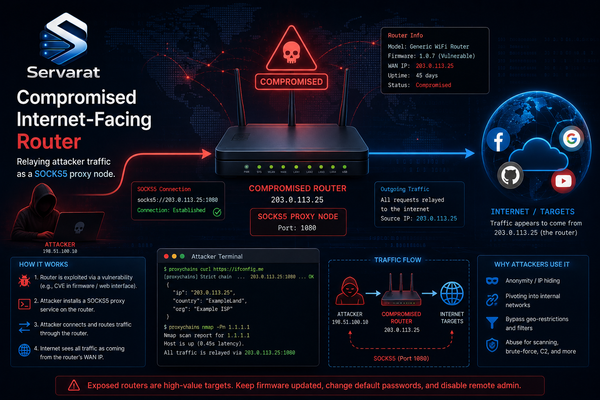
⚠️ Don't do this on an internet-facing server. That binds an AI agent capable of running terminal commands to a public IP on port 18789, protected by nothing but a token in a URL fragment — no TLS, no real auth, no rate limiting. Anyone who scans that port and grabs or guesses the token gets command execution on your box. You've built a remote shell with a friendly mascot. The token also leaks trivially: it sits in browser history, proxy logs, and Referer headers.
Leave the gateway bound to loopback. Reach it one of two safe ways.
Option A — SSH tunnel (simplest, nothing to configure server-side)
From your laptop, forward the local port over SSH:
ssh -N -L 18789:127.0.0.1:18789 user@YOUR_SERVER_IP
Then open http://127.0.0.1:18789/ in your local browser. Traffic rides the encrypted SSH channel, the gateway never leaves loopback, and nothing new is exposed. This is the right answer for a single admin and the one I'd reach for first.
Option B — Reverse proxy with TLS and auth (for persistent multi-device access)
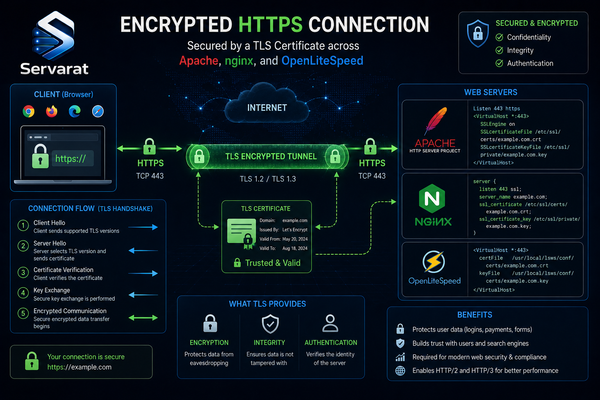
If you need browser access without opening a tunnel each time, put Nginx in front with a real certificate and HTTP basic auth (or your SSO of choice) as a second factor on top of the token.
Create the credentials file:
apt install -y apache2-utils && htpasswd -c /etc/nginx/.openclaw_htpasswd youradminuser
Nginx site config (/etc/nginx/sites-available/openclaw):
server {
    listen 443 ssl http2;
    server_name openclaw.example.com;

    ssl_certificate     /etc/letsencrypt/live/openclaw.example.com/fullchain.pem;
    ssl_certificate_key /etc/letsencrypt/live/openclaw.example.com/privkey.pem;

    auth_basic           "OpenClaw";
    auth_basic_user_file /etc/nginx/.openclaw_htpasswd;

    location / {
        proxy_pass http://127.0.0.1:18789;
        proxy_http_version 1.1;
        proxy_set_header Upgrade $http_upgrade;
        proxy_set_header Connection "upgrade";
        proxy_set_header Host $host;
        proxy_set_header X-Real-IP $remote_addr;
        proxy_set_header X-Forwarded-For $proxy_add_x_forwarded_for;
        proxy_set_header X-Forwarded-Proto $scheme;
    }
}
Enable it and reload:
ln -s /etc/nginx/sites-available/openclaw /etc/nginx/sites-enabled/ && nginx -t && systemctl reload nginx
The gateway still binds to 127.0.0.1 — Nginx is the only thing talking to it, and the public internet only ever sees TLS + basic auth. The WebSocket upgrade headers matter here; without them the gateway's ws:// connection won't work through the proxy.
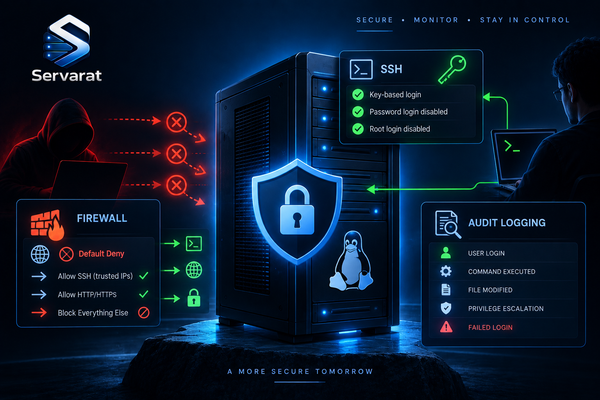
⚠️ Whichever option you pick, lock the port at the firewall so 18789 is never reachable from outside even by accident:
ufw deny 18789/tcp
If you're on CSF instead of UFW, the equivalent is making sure 18789 isn't in TCP_IN — it shouldn't be there by default, so just confirm.
Add Your Model Credentials After Lockdown
Once access is restricted, wire up the model provider:
openclaw models auth login --provider anthropic
⚠️ The agent runs commands with the privileges of the user that owns the gateway service. Running it as root means a prompt-injected or misbehaving agent has root. Run OpenClaw as a dedicated unprivileged user, not root, so a bad instruction can't reformat the box. Create one and reinstall under it rather than leaving the root install in place on anything you care about.
Conclusion
The OpenClaw install itself is a five-minute job. The part worth slowing down for is access: a command-executing agent on a public port is a remote shell for whoever finds it first. Keep the gateway on loopback, reach it through an SSH tunnel or an authenticated TLS proxy, block the port at the firewall, and run it as a non-root user. The convenience of binding it to a public IP is not worth handing your server to a port scanner.