Linux Process Management: A Practical Guide for Sysadmins

A Linux process is an instance of a running program. The kernel manages every process that starts on your system, allocating CPU time, memory, and file descriptors. Understanding process management is essential for debugging performance issues, terminating rogue processes, and understanding system behavior.
Think of processes as tasks in a queue. The kernel's job scheduler decides which task gets CPU time, for how long, and in what order.
Process fundamentals
PID, PPID, and process state
Every process has:
- PID (Process ID): A unique identifier for this process instance
- PPID (Parent Process ID): The PID of the process that created it
- State: What the process is currently doing (running, sleeping, stopped, zombie, etc.)
View processes with:
ps aux
Output columns:
USER       PID  %CPU %MEM    VSZ   RSS TTY      STAT START   TIME COMMAND
root         1   0.0  0.1 167448 11976 ?        Ss   10:22   0:01 /sbin/init
root       123   0.0  0.2 578432 18744 ?        Ss   10:22   0:00 /lib/systemd/systemd-journald
user      1234   0.5  1.2 1254632 98765 pts/0   R+   10:25   0:03 python script.py
Key columns:
- USER: Owner of the process
- PID: Process identifier
- %CPU: CPU usage percentage
- %MEM: Memory usage percentage
- VSZ: Virtual memory size (KB)
- RSS: Resident set size — actual physical memory used (KB)
- STAT: Process state
- TTY: Terminal the process is attached to (? means no terminal)
- COMMAND: The command that started the process
Process states
The STAT column shows the process state:
| State | Meaning | Notes |
|---|---|---|
| R | Running | Currently executing on CPU |
| S | Sleeping (interruptible) | Waiting for event or I/O, can be woken |
| D | Sleeping (uninterruptible) | Waiting for I/O, cannot be interrupted by signals. Unkillable. |
| Z | Zombie | Process exited but parent hasn't reaped it |
| T | Stopped | Paused by SIGSTOP, can be resumed with SIGCONT |
| X | Dead | Process exited and is being removed |
Common composite states:
- Ss: Session leader, sleeping
- S+: Foreground process, sleeping
- R+: Foreground process, running
The + means foreground (attached to controlling TTY), l means multi-threaded, s means session leader.
Viewing and filtering processes
ps variants
# Standard view
ps aux

# Tree view (shows parent-child relationships)
ps auxf

# Just processes owned by a user
ps -u username

# Specific columns
ps -o pid,ppid,cmd,stat

# Full command line (not truncated)
ps auxww

# Processes from a specific TTY
ps -t pts/0
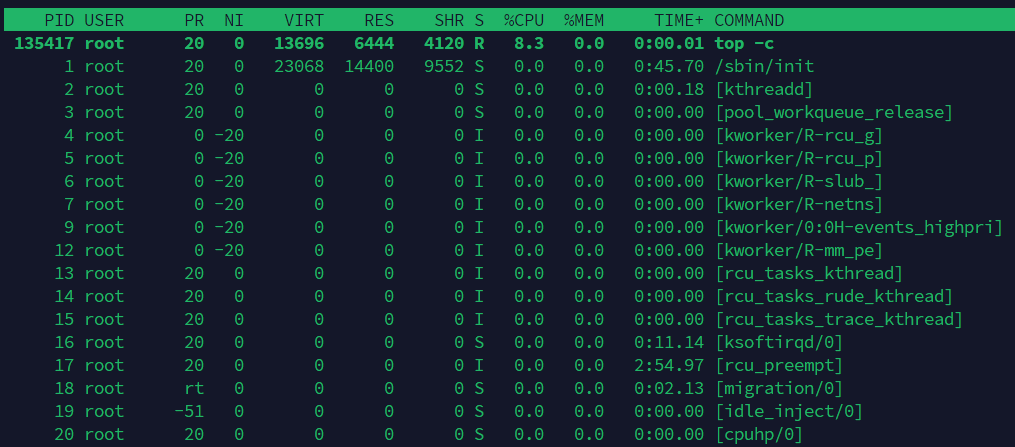
top and htop (real-time monitoring)
# Interactive process monitor
top

# Better version (install if needed)
htop

# Sort by memory usage
top -o %MEM

# Sort by CPU usage
top -o %CPU

# Show processes from a specific user
top -u username
In top, press:
qto quitkto kill a process (prompts for PID and signal)rto renice a processMto sort by memoryPto sort by CPUTto sort by time
pgrep and pkill (search by name)
# Find process ID by name
pgrep -f "python script.py"

# Kill all processes matching a name
pkill -f "nginx"

# Kill with specific signal
pkill -15 -f "node server.js"  # SIGTERM
pkill -9 -f "node server.js"   # SIGKILL (last resort)

# List process names matching pattern
pgrep -l firefox
Process lifecycle
Understanding how processes are created and terminated is key to managing them.
Fork and exec
When you run a command like echo "hello", the shell:
- Calls fork(): Creates a copy of itself (child process gets a new PID)
- Calls exec(): Replaces the child's memory with the new program
- Parent waits: The parent shell calls wait() to get the child's exit status
# Example: run a background process
python long_script.py &
# The shell forks, execs python, and returns to prompt
# The & tells the shell not to wait()
Process termination and exit codes
When a process finishes, it calls exit() with a status code:
- 0: Success
- Non-zero: Failure (the number indicates the error)
The parent process must call wait() to read the child's exit status and free its memory. If it doesn't, the child becomes a zombie.
# Check exit code of last command
echo $?

# Exit code 0 = success
python -c "import sys; sys.exit(0)" && echo "Success" || echo "Failed"

# Exit code non-zero = failure
python -c "import sys; sys.exit(1)" && echo "Success" || echo "Failed"
Zombie and orphan processes
Zombies: when parent doesn't reap
If a child process exits but the parent hasn't called wait(), the child becomes a zombie process. It occupies a slot in the process table but doesn't consume CPU or memory. However, too many zombies can exhaust the process table (default 32K on most systems).
Common cause: A daemon parent process ignores SIGCHLD, preventing it from reaping child processes.
Symptom: ps aux shows processes in Z state.
Fix:
# Find the parent of zombie processes
ps auxf | grep Z

# Kill the parent (it will be forced to reap zombies)
kill -9 <parent_pid>
Or restart the parent daemon:
systemctl restart <daemon_name>
Orphans: when parent dies first
If a parent dies before its children, the children become orphans. The kernel reparents them to the init process (PID 1 on older systems, or systemd on modern systems). The init process periodically calls wait() to reap them, so orphans are not a problem.
Symptom: PPID becomes 1 (or systemd's PID).
# See orphaned processes
ps -o ppid,pid,cmd | grep "^ *1 "
Signals and process termination
Signals are how the OS communicates with processes. You send signals using kill (despite the name, it doesn't always kill).
Common signals
| Signal | Number | Meaning | Catchable |
|---|---|---|---|
| SIGHUP | 1 | Hangup; reload config | Yes |
| SIGINT | 2 | Interrupt (Ctrl+C) | Yes |
| SIGTERM | 15 | Terminate gracefully | Yes |
| SIGKILL | 9 | Kill immediately | No |
| SIGSTOP | 19 | Stop (pause) | No |
| SIGCONT | 18 | Continue | Yes |
Best practice: SIGTERM before SIGKILL
# 1. Send SIGTERM (graceful shutdown, allows cleanup)
kill -15 <pid>

# 2. Wait a few seconds
sleep 5

# 3. Check if it's gone
ps -p <pid>

# 4. If still running, send SIGKILL (force kill)
kill -9 <pid>
Why this matters: SIGTERM allows the process to:
- Close files properly
- Close database connections
- Write logs
- Clean up temporary files
SIGKILL gives it no chance, which can leave resources locked or data corrupted.
Example: graceful restart of a service
# Send SIGTERM to all nginx workers
pkill -15 -f "nginx: worker"

# Wait for graceful shutdown
sleep 3

# If any remain, force kill
pkill -9 -f "nginx: worker"

# Start fresh
systemctl start nginx
Process priority and resource limits
nice and renice
Process priority ranges from -20 (highest) to 19 (lowest). Higher priority processes get more CPU time.
# Start a process with low priority
nice -n 10 python heavy_computation.py

# Change priority of running process
renice -n 10 -p <pid>

# Give a process higher priority (requires root)
renice -n -5 -p <pid>
ulimit: resource limits
Set hard limits on what a process can use:
# View current limits
ulimit -a

# Limit CPU time to 60 seconds
ulimit -t 60

# Limit memory to 512 MB
ulimit -v 512000

# Limit open files
ulimit -n 1024

# These are per-shell; systemd services use LimitCPU=, LimitMemory=, etc.
Systemd service example:
[Service]
LimitNOFILE=4096
LimitNPROC=512
MemoryMax=1G
CPUQuota=200%
The /proc filesystem: process introspection
Everything in Linux is a file. Process information lives in /proc/<pid>/:
# Process status and memory info
cat /proc/1234/status

# Full command line (with arguments)
cat /proc/1234/cmdline | tr '\0' ' ' && echo

# Current working directory
ls -l /proc/1234/cwd

# Memory map (what memory regions contain what)
cat /proc/1234/maps

# Open file descriptors
ls -la /proc/1234/fd/

# Environment variables
cat /proc/1234/environ | tr '\0' '\n'

# CPU and scheduling info
cat /proc/1234/stat

# I/O statistics
cat /proc/1234/io
Practical debugging example
Process is consuming memory but you don't know why:
# Find the process
ps aux | grep python

# Get its PID
pid=1234

# See what files it has open
ls -la /proc/$pid/fd/

# See its memory map (which libraries, how much)
cat /proc/$pid/maps

# See what system calls it's making (requires strace)
strace -p $pid

# See its resource limits
cat /proc/$pid/limits
systemd process management
Modern Linux uses systemd to manage processes via service units. Understanding systemd's view of processes is essential.
# Show process tree for a service
systemctl status nginx

# Show all processes in a service's cgroup
systemd-cgls --unit=nginx.service

# Limit resources for a service
systemctl set-property nginx.service MemoryMax=1G CPUQuota=50%

# See what processes a service spawned
ps --forest -o pid,ppid,cmd | grep nginx
Common gotchas
1. Killing a process doesn't always free resources
# Process killed, but file is still locked
kill -9 <pid>

# File descriptor still held (even though PID is gone)
lsof /path/to/file
# COMMAND PID USER FD TYPE DEVICE SIZE NAME
# java    1234 user 42 REG /dev/sda1 1000000 /path/to/file

# Solution: restart the service or reboot
2. Child processes don't die when parent dies
# Start a long-running process in background
python server.py &

# Exit the shell
exit

# The process keeps running! (now orphaned)
pgrep -f "server.py"
Fix: Use nohup or screen/tmux:
nohup python server.py &
# or
tmux new-session -d -s myapp "python server.py"
3. Zombie processes waste PID slots
A server with 100 zombie processes can't spawn new processes because PIDs are exhausted.
# Count zombies
ps aux | grep " Z " | wc -l

# Find their parents
ps auxf | grep -B1 "Z"

# Kill the parent
kill -9 <parent_pid>
4. TTY=? doesn't mean the process isn't printing
A background daemon with no TTY can still write to stdout/stderr if it was started with redirection:
# This daemon will write to nohup.out even with TTY=?
nohup ./daemon &

# Check where it's writing
lsof -p $(pgrep daemon)
Quick reference
| Task | Command |
|---|---|
| List all processes | ps aux |
| Tree view | ps auxf |
| Find by name | pgrep -f "pattern" |
| Kill gracefully | kill -15 <pid> |
| Force kill | kill -9 <pid> |
| Kill by name | pkill -15 -f "pattern" |
| Monitor in real-time | top or htop |
| See process details | cat /proc/<pid>/status |
| See open files | lsof -p <pid> |
| See system calls | strace -p <pid> |
| Limit resources | systemctl set-property <service> MemoryMax=1G |
| Renice priority | renice -n 10 -p <pid> |
Process management is the foundation of system administration. Master these tools and you'll solve 80% of Linux issues that cross your desk.